Cash requests
Someone on site asks for petty cash. Once it's approved and handed over, it's added to that person's balance.
Features
OnCon follows a project from its first paper to its last payment: what happened on site today, what's being bought, what it costs, and who has to act next.
From the site
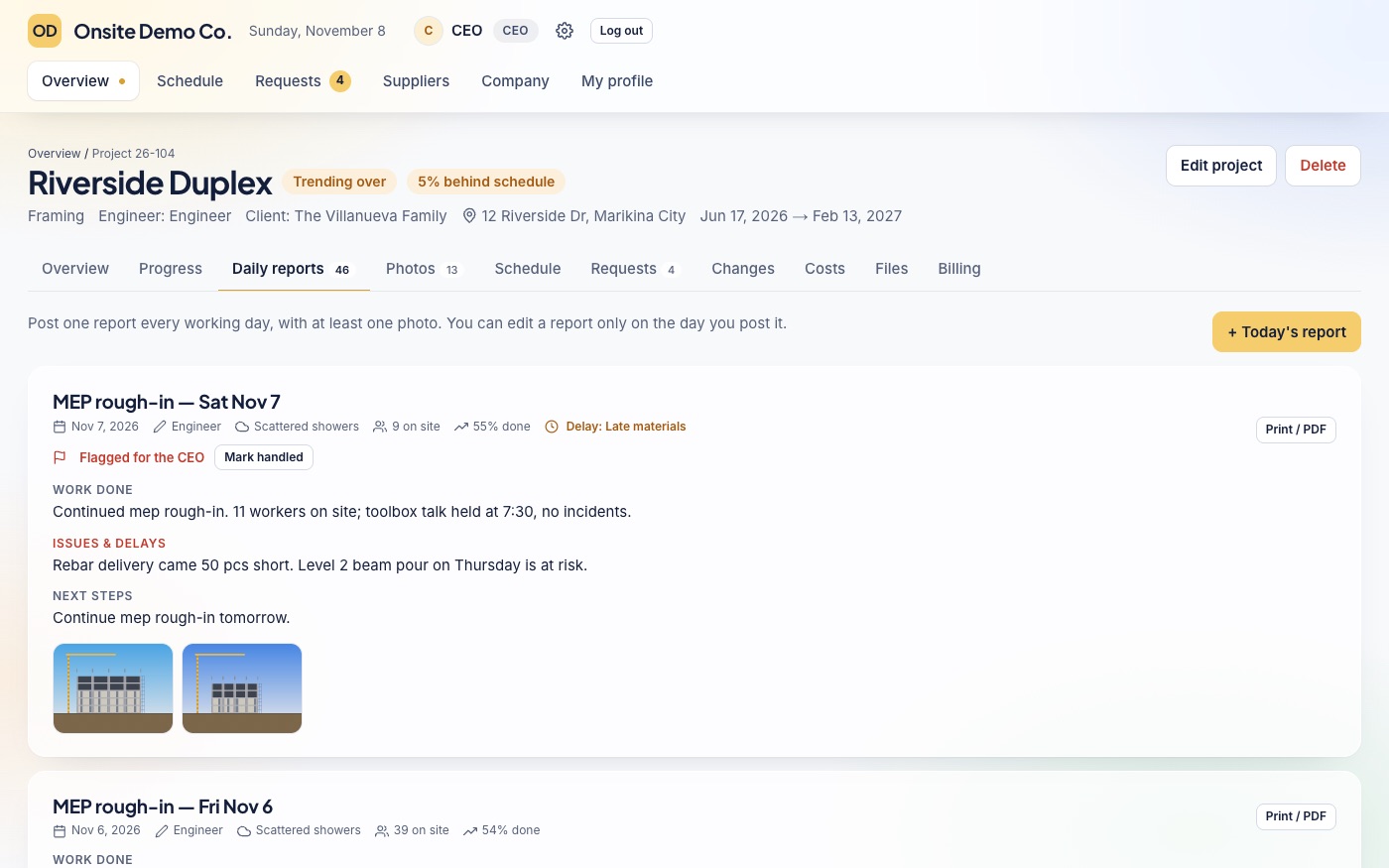
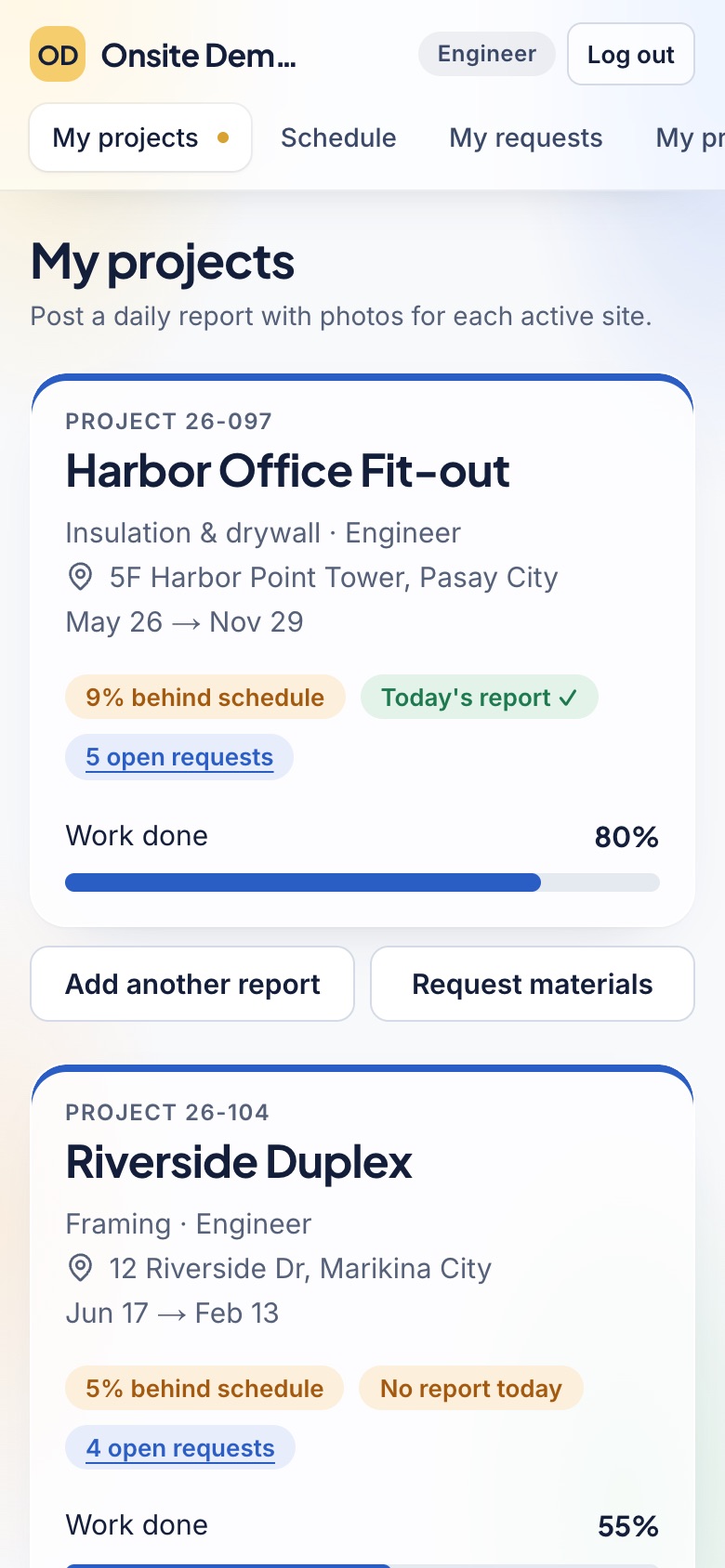
Each engineer posts one report a day for each project, from a phone, while the work is fresh.
Purchasing
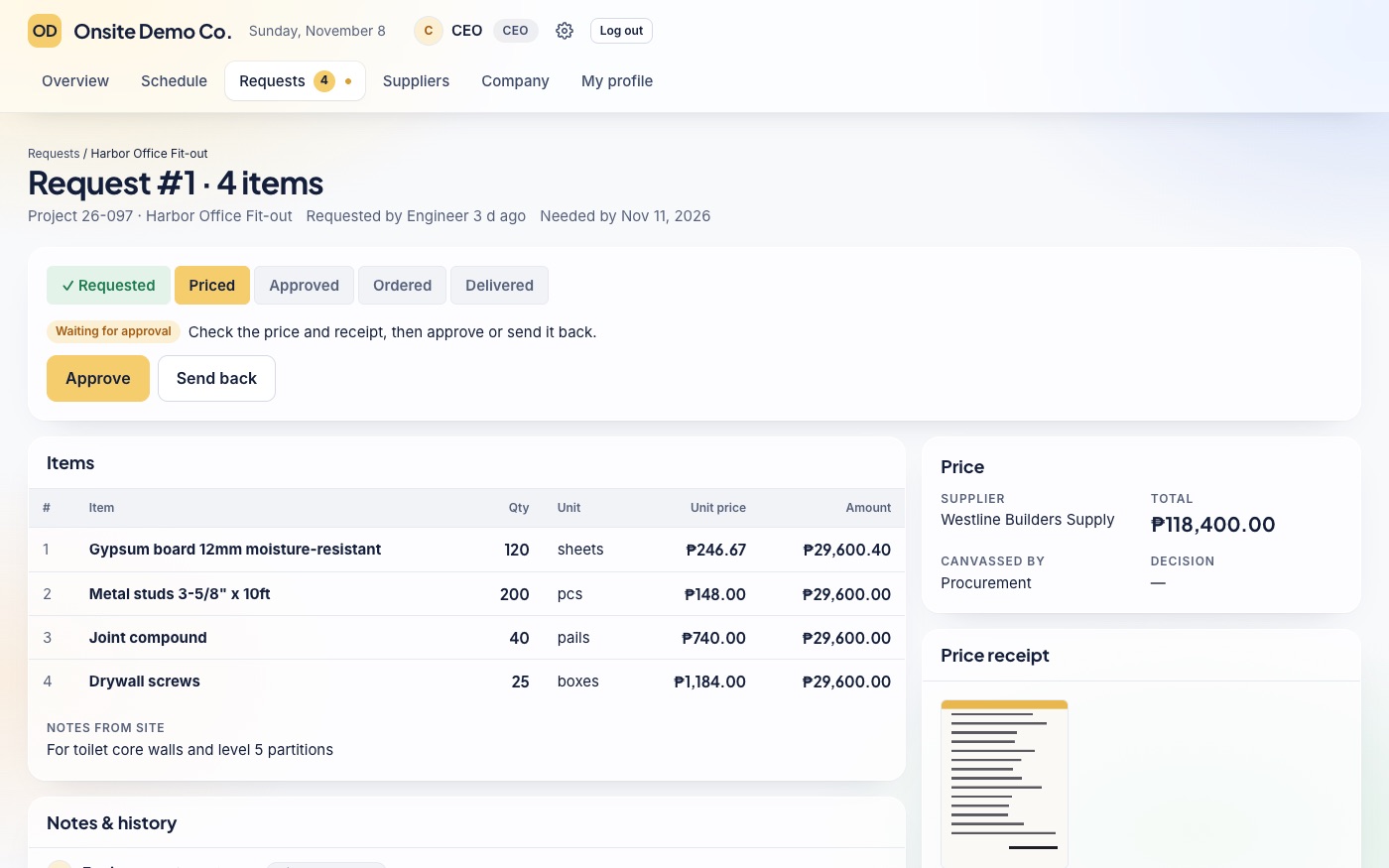
Every request follows the same five steps, and OnCon shows who has to act next.
Prices build a history for each item and supplier, and receipts can be replaced but never deleted.
Money on site
The money that moves around a site, written down when it happens.
Someone on site asks for petty cash. Once it's approved and handed over, it's added to that person's balance.
Request, approve and hand over payroll for a project, and record it as one of the project's costs.
Record each purchase as paid with company money or petty cash, on supplier credit, or with a loan.
Pay-later purchases and loans stay on one list with their due dates, with a notice when one is close or late.
Turn it on to record the contract amount of each project and the payments received from your client.
Keep your suppliers in one place, with the prices they gave for each item over time.
Budgets
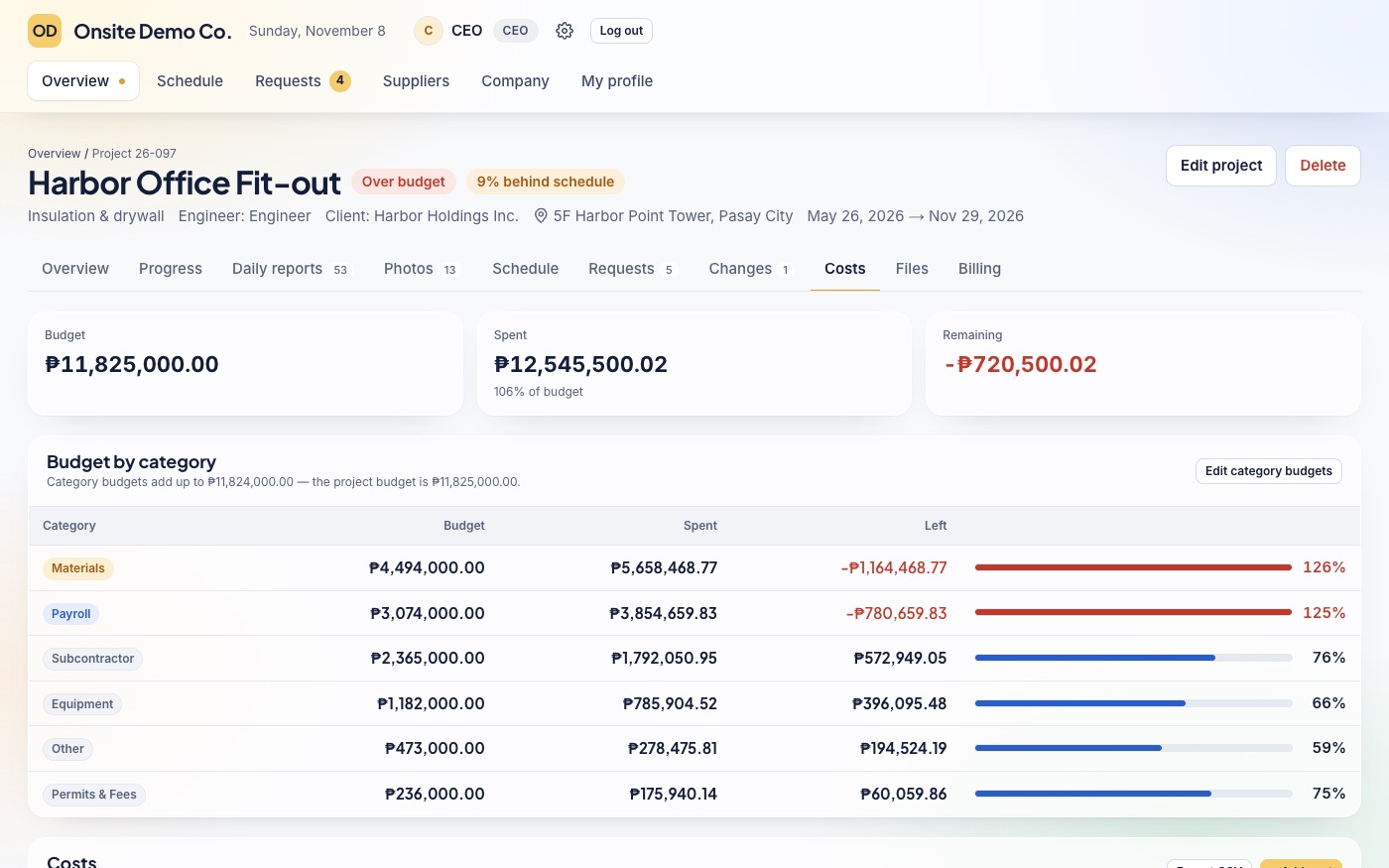
See what each project has spent against its budget, without waiting for month-end.
Time
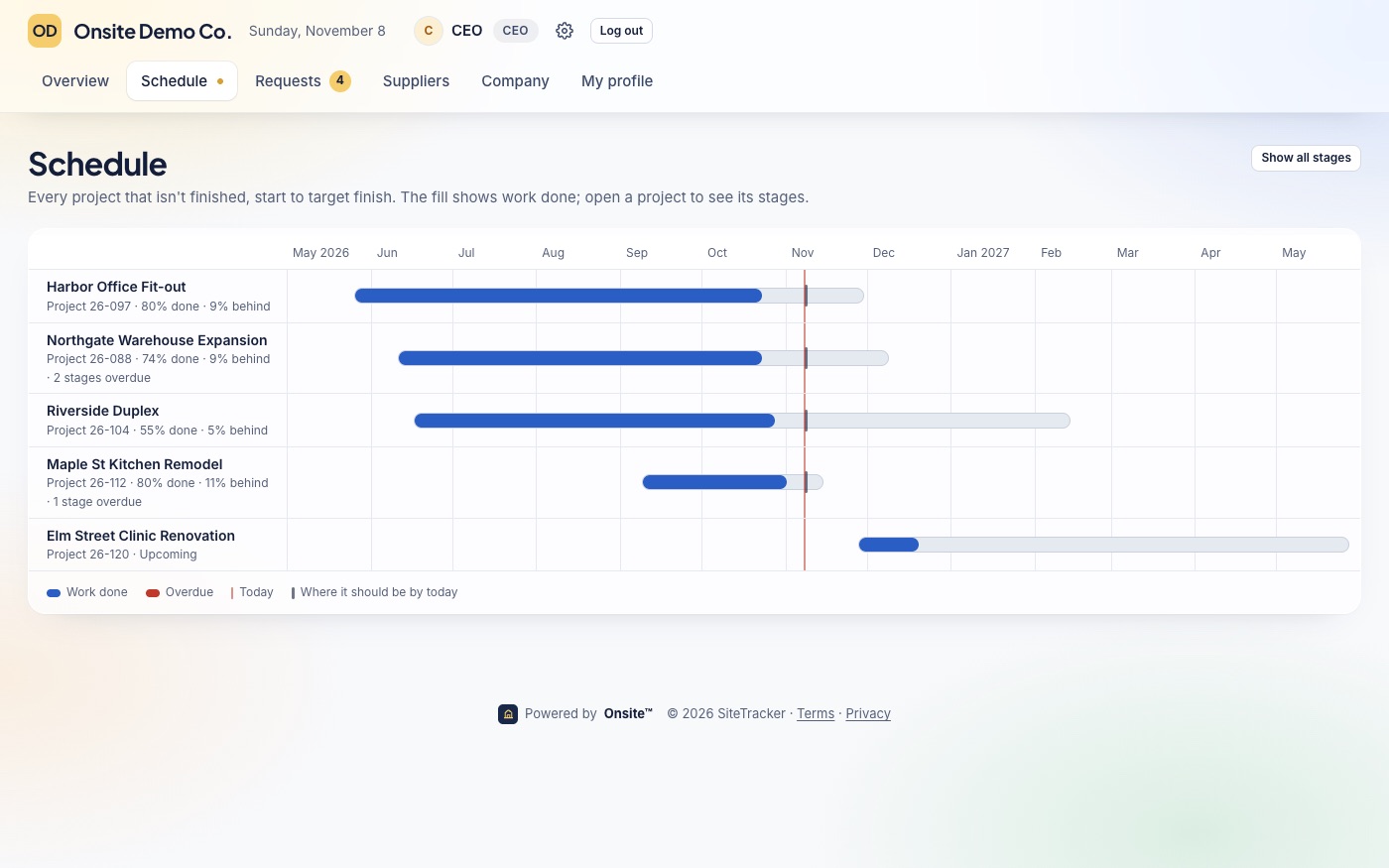
Every unfinished project on one timeline from start to target finish, filled to its work done.
OnCon AI
For the CEO and the people the CEO chooses. It prepares drafts in the normal forms and a person checks and saves them. It can't save, approve, pay or delete anything, and it can only prepare what that person's role already allows, on the projects they can see.
On site
Most of a site's work happens far from a good connection, so OnCon is made for it.
Your office
Ready-made roles for a construction company, with room for your own.
CEO, secretary, Human Resources, engineer, procurement and accounting, each with its own view. The CEO can also make custom roles.
Choose who approves requests and up to how much, or hand all approvals to someone until a date.
Engineers only see the projects they're assigned to, and each person's menu only shows what they can use.
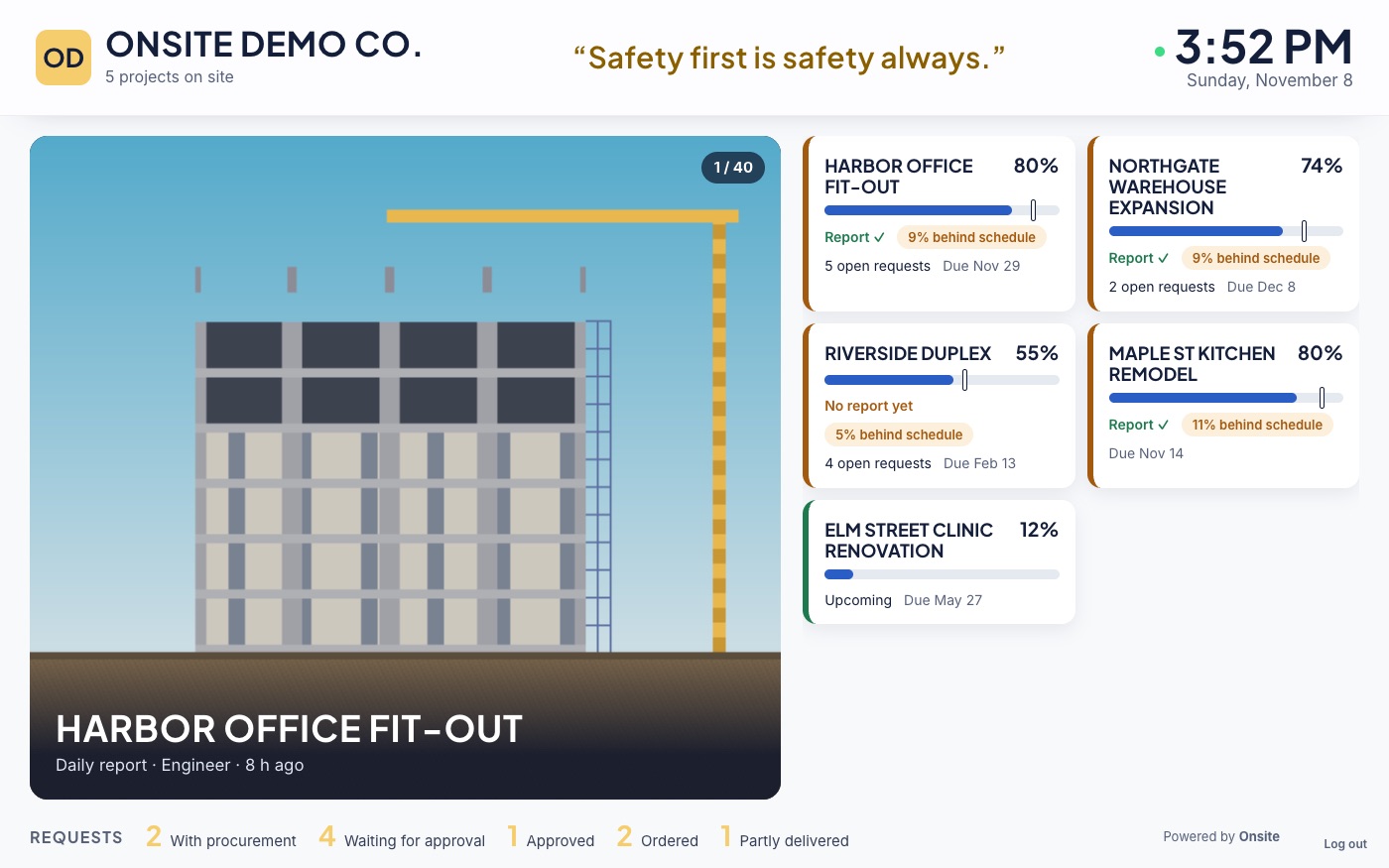
A full-screen view for the office, moving through your projects with their latest site photos and stages. No money, notes or request details.
Each person gets a short guided tour for their role the first time they sign in.
Once they sign in, your team sees your logo, your colors and your company's name.
Ownership
Each company has its own workspace. What your team enters belongs to your company, and we don't sell it or use it for advertising.
The CEO can download all the company's records, photos and receipts at any time.
Keep each project's plans, contracts, permits and photos with the project itself.
Start a 30-day free trial with every feature and every role.